HULFT Integrate Help

Introduction

This HELP page provides you with an introduction and overview of HULFT Integrate.
Browse topics in the left frame and click on a topic to have it displayed in this frame. The Back and Forward buttons can be used to navigate within the history of viewed topics.
The help includes the "Browser Help" which is referred to on web browser and the "Studio Help" which is referred to on Integrate Studio. Both helps have the same contents.

Conventions used in this help document

It is the description about notation used in this help document.

Admonition conventions

Additionally, the help document uses different symbols to draw your attention to pieces of information.

Symbol Description
Indicates an administrative feature.
Indicates that there are hints about operations or configurations.
Indicates that there are warnings about operations or configurations.
Indicates that there are detailed descriptions in other resources.
Indicates the information provided is peculiar to Integrate Studio.
Indicates the information provided is peculiar to Integrate Studio for Web.

Environment

Supported Platform and Supported Web Browser of Browser Help

Refer to
here for more information about Supported Platform and Supported Web Browser.

Supported Platform of Studio Help

Launching Help

It is the procedure to launch HULFT Integrate Help.

Browse Help

Tool Methods Remarks
Web Browser Windows
  • From the Windows "Start" menu, select [All Programs]-[HULFT Integrate <version> <package>]-[Help].
  • Or by accessing the URL as follows.
    • http://<IP address of IntegrateServer host>:<port number designated to IntegrateServer>/integrate/doc/help/index.html
  • IntegrateServer needs to be started.
UNIX/Linux
  • Open the following URL in the browser.
    • http://<IP address of IntegrateServer host>:<port number designated to IntegrateServer>/integrate/doc/help/index.html

Studio Help

Tool Methods Remarks
Integrate Studio
  • Select [Help] in the Start menu.
  • By clicking help icon.
  • Select [Help] in Designer menu.
  • By pressing F1 key in Designer view.
 

Table of contents

This help is structured as follows.

The concept of the HULFT Integrate Overview of HULFT Integrate.
Service Guide Explains the basic concept of service and information needed for its development and deployment.
It is recommended to read through it once before you begin the development of service.
Operational Tool Explains all of the features that comprises what is defined as a service which includes Trigger, ScriptRunner, and CLI Console.
Development Tool Explains developing environment such as Studio and Designer.
Architecture Gives details regarding HULFT Integrate architecture.
Adapter Gives details regarding each adapter component.
Mapper Gives details regarding Mapper editor and Mapper logics.

Searching

HULFT Integrate help enables you to search the full text in the help documents.

Browse Help

Enter a search query in the [Search] field found at the left top of the tree and hit the [Search] button.

Studio Help

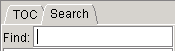
Enter a search query in the [Search] field found within [Search] tab found at the left top of the tree.

Help Toolbar

Available only in Studio help.

Toolbar provides the following features.

Icon Name Description Remarks
Previous Page Navigate the history of the viewed page backwards.  
Next Page Navigate the history of the viewed page forwards.  
Print Prints the page of the document displayed.  
Print all pages of folder Prints all document in the selected category folder recursively.  
Page Setup Launches the page setup dialog.  
Always On Top Select whether to show the help on top.
  • Toggled on:
    Show the help on top.
  • Toggled off:(Default)
    Show a selected tool on top.
 
Synchronize help content Select whether to keep the navigation tree synchronized to the currently selected operation in the Designer.
  • Toggled on:(Default)
    Keeps the navigation tree synchronized to the currently selected operation in the Designer.
  • Toggled off:
    The synchronization is disabled.(Not synchronizing with the designer.)
 

Specification Limits