Basic Functions (Document Mapper/Variable Mapper)
In this page, Document Mapper and Variable Mapper are together referred as “Mapper”.
 For details on Merge Mapper, refer to “Basic Functions (Merge Mapper)”.
For details on properties, specification limits, and notes, refer to “Document Mapper/Variable Mapper”.
Mapper
Mapper is a converter to convert and process data read from the input component and write it to the subsequent component, or assign it to variables.
Mapper can be used in Designer. Follow the instructions below to use it.
- Document Mapper / Variable Mapper
- Place the component icon from the tool palette
Drag and drop the icon on the canvas from “Conversion” - “Basic” - “Mapping” in the tool palette.
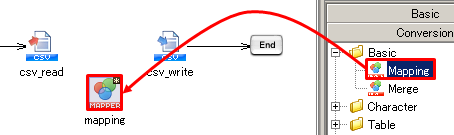
 To place Variable Mapper, drag and drop “Basic” - “Process” - “Assign Variables” from the tool palette.
- Document Mapper
- “Add mapping” dialog
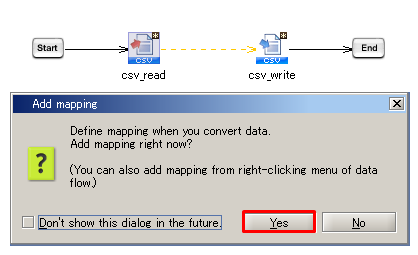
When a component with output schema is connected through data flow to another component with input schema, “Add mapping” dialog will be displayed.
You can also place a Mapper from this dialog. (A mapper will be placed between the components.)
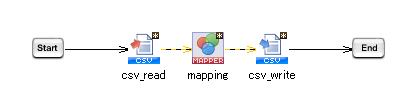
 For components that can generate input/output schema automatically, mapping definitions are set automatically when a Mapper is placed.
Refer to “Edit Schema” for more details.
You can set whether or not to display “Add mapping” dialog from the Designer menu [Tools] - [Options].
Refer to “Tools” for more details.
- Right-click menu [Add mapping]
You can select [Add mapping] in the right-click menu on data flows to place a Mapper.
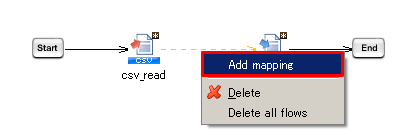
To define mapping, such as data conversion and processing, a dedicated GUI tool is provided.
Refer to “Mapper Editor” for more details.
For input/output schema of Document Mapper and output schema of Merge Mapper, when data flow is removed, the schema that has been set will be retained. This is called “Temporary schema”.
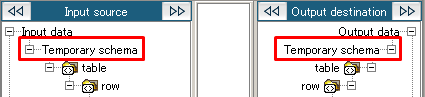
The component icon name part of temporary schema is displayed as “Temporary schema” to distinguish from normal schemas.
When the Mapper is connected to another component through a data flow, the temporary schema will be restored to normal schema.
With temporary schema, mapping links remain even if its corresponding data flow is removed, and you can edit schema even if the Mapper is not connected to a component.
On the other hand, when the data flow is removed from Mappers without temporary schema (input schema of Variable Mapper and Merge Mapper), the schema will be reset and the mapping links will be removed.
To edit schema before setting data flows, you can set a temporary schema manually.
Select [Set temporary schema] from the right-click menu on “Input data” of input source or “Output data” of output destination.
 By connecting elements of input source and output destination, which are called loop points, with loop logic, elements under them can be processed repeatedly.
How to create loop
-
Drag and drop a loop logic onto the mapping canvas.
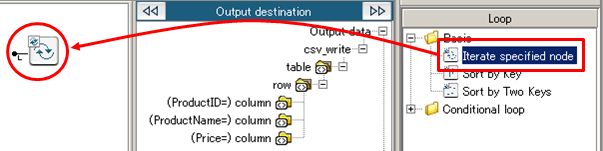
-
Drag and map the loop points of input source and output destination to the loop logic.
For more details, refer to the following part “Loop point”.
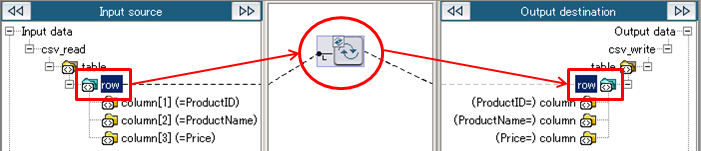
Elements that can be set as loop point vary depending on Data Model of schema.
- Table model type
- Only row element can be loop point.
- XML type
- Elements other than root can be loop point.
Difference between solid and dotted lines of mapping link
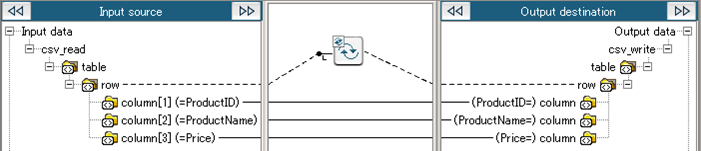
There are two types of mapping links, solid and dotted, and they have particular meanings.
- Solid line shows data mapping. It is used in normal Mapper logic.
- Dotted line shows loop. It is used in loop and Merge logic.
Component variables
Component variables are variables that can be available from each component. You can use that to switch subsequent processes according to adapter results.
Available values vary depending on each component. For more details, refer to the help page of each adapter.
You can perform "getting component variables", "storing them into script variables", and "conversion/processing" in Document and Variable Mapper.
“Conversion / Processing” can be performed using Mapper Logic.
Script variables
Script variables are variables to hold values temporarily while executing a script. You can use that to store the result data of adapter temporarily and use it in subsequent operations.
You can perform “Exchanging with data resources” and “Conversion / Processing” in Document and Variable Mapper.
“Conversion / Processing” can be performed using Mapper Logic.
To use script variables in property items (string type) of Mapper logic, specify it as “${<variable name>}”. To output escaping "$", specify it as "$$".
As XML type script variables cannot be used in mapping, they are not displayed.
Output processing data log function is the function to output data information processed with Mapper logic to the log.
As this log is output in the order of internal process of Mapper, you can know how the data conversion/processing is done in detail.
With this function, it is possible to create a conversion/processing while checking the operation of actual data, and therefore you can develop a mapping efficiently.
Targets for outputting log and the log levels are as follows.
| Target |
Log level |
| Input/Output data of Mapper logic |
DEBUG |
| Data output into output schema |
DEBUG |
| Data assigned to script variables |
INFO |
The details of output contents are as follows.
Input/Output data of Mapper logic
Input/Output data of Mapper logic are output in DEBUG log level.
The format varies depending on the number of input handlers.
Mapper logic with no input handler
Format
[<Mapper logic name>] OUT=[<output data>]
Output example
[Single-line String Constant] OUT=[outputData]
Mapper logic with one input handler
Format
[<Mapper logic name>] IN=[<input data>] | OUT=[<output data>]
Output example
[Left String] IN=[SampleData] | OUT=[Sample]
Mapper logic with multiple input handlers
Format
[<Mapper logic name>] IN=[<input data 1>][<input data 2>]... | OUT=[<output data>]
Output example
[Concatenate] IN=[Sample][Data] | OUT=[SampleData]
Data output into output schema
Data output into output schema is output in DEBUG log level.
The format differs depending on whether the data model of output data is table model type or XML type.
Table model type
Format
column[<row number>,<column number>] IN=[<input data>]
Output example
column[2,1] IN=[SampleData]
Row/Column number starts from 1.
XML type
Format
<the path in output schema> IN=[<input data>]
The attribute in output schema is output as “@<attribute name>”.
The prefix of name space in output schema is output as “<prefix>:” before element name and attribute name.
Output example
/root/row/col IN=[SampleData]
/root/row/col/@attr IN=[SampleData]
/root/row/pre:col IN=[SampleData]
Data assigned to script variables
Data assigned to script variables is output in INFO log level.
Format
<script variable name>(<script variable type name>) IN=[<input data>]
Output example
var(String) IN=[SampleData]
Notes
Specification Limits
- When the input handler type of Mapper logic is "Node set", input data log will not be output.
- When null is input in Mapper logic which has one or more input handlers, input data might not be output.
- Input/Output data logs for the following Mapper logics are not output.
- Loop
- Iterate specified node
- Sort by Key
- Sort by Two Keys
- If Loop
- Grouping
- Excel
- Others
-
Input data logs for the following Mapper logics are not output.
- Branch
- Condition
- And
- Or
- Not
- To Boolean
- Check Null
- Number
- To Number
- Square Root Value
- String
- Get Cell Value
- Get Value by XPath
- To String